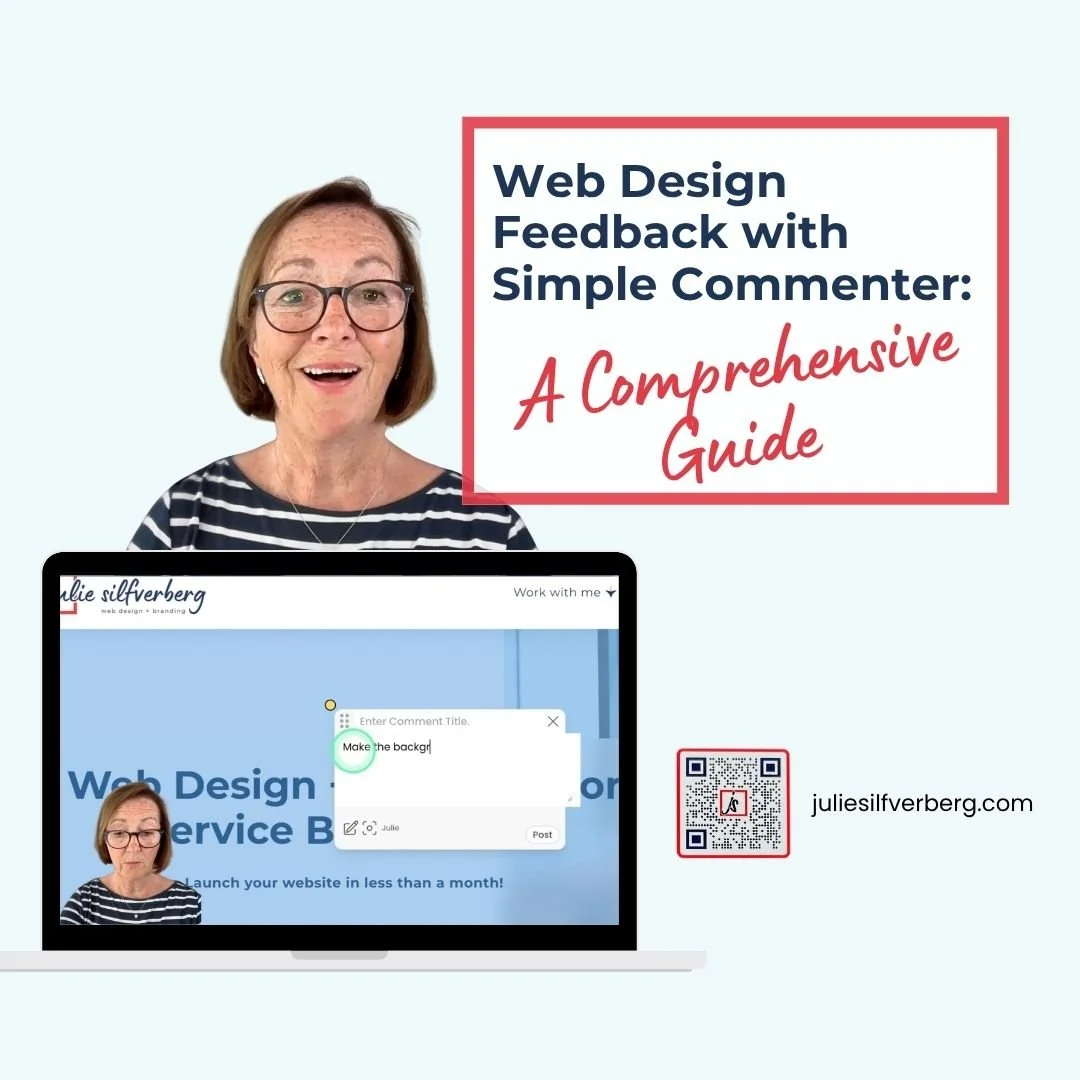
How to Efficiently Give Web Design Feedback with Simple Commenter: A Comprehensive Guide
Introduction
In today's fast-paced digital world, effective communication is key, especially when it comes to providing feedback on web designs.
As a Squarespace web designer for service businesses, I understand the challenges of back-and-forth communication and countless emails and trying to keep track of everything for both you the client and me the designer. Luckily, there's a brilliant app called Simple Commenter (not sponsored, all my own thoughts) that simplifies this process, allowing you to leave feedback directly on your website.
Let me show you how easy it is to use this tool and streamline our communication.
How to Identify the Simple Commenter on Your Website
First, let's ensure that the Simple Commenter is active on your website. On the bottom right-hand corner of your webpage, you'll notice several small icons. These indicators confirm that the app is in place:
Icons, including an eye with a line through it, a regular eye, and speech bubbles, signal the presence of Simple Commenter.
A specific speech bubble icon allows you to begin commenting on your webpage quickly.
Making Your First Comment
With Simple Commenter, leaving feedback is straightforward:
Activate the Commenting Tool: When the speech bubble with a plus sign is highlighted, you can start commenting. This will make various elements on your page flash blue.
Posting a Comment: Click on the part of the website you want to comment on—for instance, changing a section background to Navy. Enter your feedback and post it. Confirm your comment's presence via the visible speech bubble.
Remember: The visibility of highlighted areas can be managed by toggling the eye icons, allowing you to view, hide, or review comments on your page conveniently.
Enhancing Clarity in Feedback
For precise and clear guidance:
Use Colour and Annotations: By clicking on the pencil tool, you can change colours, draw boxes, and emphasise aspects of your feedback. For example, suggest capitalising main words instead of using all uppercase.
Screenshots for Assurance: The app allows you to view screenshots of your comments, ensuring clarity and accuracy in your communication.
Advanced Commenting Techniques
Sometimes, feedback requires creativity:
Use different tools within the app, such as colour changes or the pencil, to elaborate on your comments clearly. For example, outline an area with a green pencil and note, "Eliminate her head, just torso."
If issues arise, such as unclickable elements, check the address bar for unnecessary hash tags and refresh the page to continue seamlessly.
Managing and Navigating Comments Across Pages
One of Simple Commenter's great features is its ability to track comments page by page:
Page-Specific Feedback: Always recall that comments are tracked per page. If you switch pages, the number of comments will reflect the current page.
Comprehensive Overview: Easily toggle between viewing comments on your specific page or across all active pages, avoiding confusion and fostering thorough feedback sessions.
Conclusion
Simple Commenter makes leaving feedback a breeze, allowing for real-time, precise communication without the hassle of endless emails. By my incorporating this tool, it simplifies the workflow and ensures your feedback is heard and seen each step of the way.
If you have any queries, feel free to check the link in the description below or leave a comment, and I'll be more than happy to assist. Until next time, happy commenting!
Your Web Designer Julie Silfverberg ✨

Hi, if we haven’t met…
I’m Julie Silfverberg, a longstanding Coach turned Web Designer. As a coach, I know change is good. I’ve worked with virtually every type of business, from solopreneurs and startups to huge multinationals.
If you want to discuss a potential web design project - new or updating, email me here or contact me.
Or, if you’d like to chat, book a free call with me.